Every Byte Matters.
DT Database Backup Wizard - One Tool for Every Database You Run
SQL Server, MySQL, PostgreSQL, MongoDB, MariaDB, Oracle, SQLite, or anything reachable via ODBC connect, schedule, encrypt, and back up to local storage or the cloud, all from one dashboard.
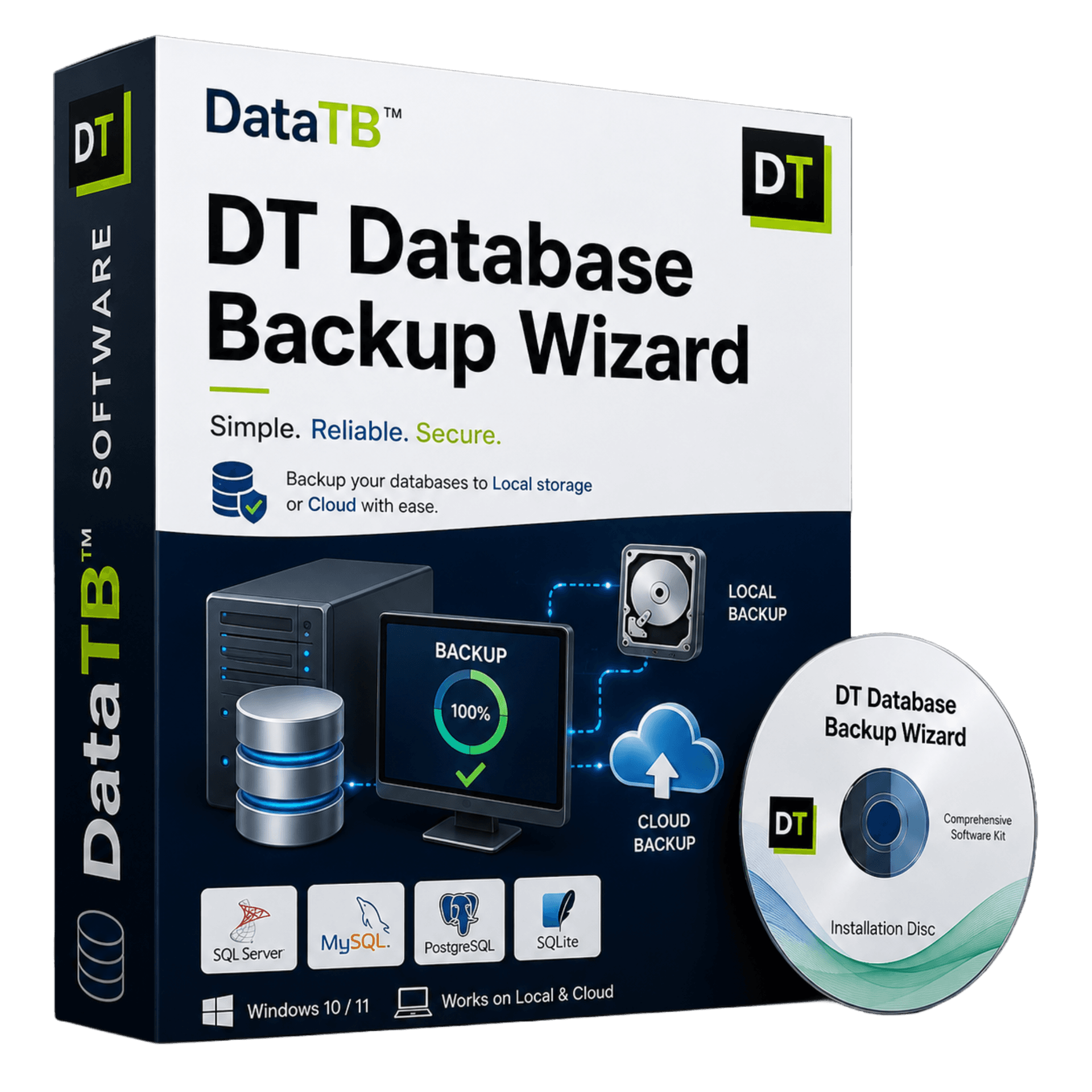
Key Takeaway: DT Database Backup Wizard is a Windows desktop application that automates backups for MySQL, SQL Server, PostgreSQL, MongoDB, MariaDB, Oracle, SQLite and ODBC sources. It allows you to schedule, encrypt, compress, and send backups to local storage or cloud destinations like Amazon S3, Google Drive, OneDrive, and FTP/SFTP, all from a single dashboard.
Unlike basic backup scripts, DT Database Backup Wizard provides a centralized Backup Control Center with a live preview of data before backup, granular retention policies, and detailed run history, ensuring backups are actually running and verified.
Audience: IT administrators, developers, freelancers, and database managers running mixed database environments who need a reliable, unified backup solution.
Every Database Needs a Backup. Almost Nobody Has One That Actually Runs.
Most teams don't run one database — they run several. PostgreSQL for the main application, MongoDB for a logging or chatbot service, MySQL for a legacy system nobody's migrated off yet. Each one comes with its own native backup tool, its own command syntax, and its own way of failing silently when nobody's watching.
mysqldump run from a forgotten cron job, pg_dumppiped into a script that hasn't been checked in months, a MongoDB Atlas snapshot policy someone configured once and never verified — this is how most databases actually get "backed up" in practice. It works until the day it doesn't, and the first sign of a broken backup job is usually the moment a restore is actually needed.
The Storage Nightmare
Add cloud storage into the mix — sending backups off-site to S3 or an FTP server, encrypting anything sensitive, cleaning up old backups so a drive doesn't quietly fill up — and what should be a solved problem turns into a pile of scripts held together by whoever set it up first.
Connect Any Database. Schedule It Once. Stop Thinking About It.
DT Database Backup Wizard is a single application that connects to eight different database engines and handles the entire backup lifecycle — connection, table selection, format, destination, scheduling, and retention — from one interface:
Instead of maintaining a different tool, script, or vendor dashboard per database engine, every backup job — regardless of which database it targets — is configured, scheduled, and monitored the same way, in the same app.
How to Backup SQL Server Automatically (And Why It Matters)
According to the official Microsoft SQL Server documentation, a reliable backup strategy is the only way to protect your data against accidental data loss, database corruption, or hardware failure. However, manually creating backups is inefficient and prone to human error.
Decision Context & Use Cases: This software is explicitly designed for database administrators (DBAs), DevOps engineers, and managed service providers (MSPs) in the IT industry. Common use cases include:
- Implementing automated, schedule-driven backup workflows across multiple database engines (SQL Server, MySQL, MongoDB, etc.)
- Securing sensitive data with built-in 256-bit AES encryption to meet compliance requirements.
- Routing backups directly to offsite cloud storage (AWS S3, Google Drive, OneDrive) without intermediate scripts.
From Zero to a Running Backup Schedule in 5 Steps
Connect Your Database
Preview Your Data
Configure Backup Settings
Choose Where It Goes
Schedule It and Walk Away
Built to Run Backups, Not Just Create Them Once
Backup Control Center
A single dashboard showing every active backup schedule — database, engine, frequency, destination, and format — with a one-click Run Now for any schedule and a delete option to retire jobs that are no longer needed.
Backup Activity & Run History
Every backup run, scheduled or manual, is logged with start time, trigger type, status, and a plain-language message. A failed run shows up as Failed with the actual error (for example, a network-related connection issue) instead of disappearing into a log file nobody checks.
8 Database Engines From One Interface
SQL Server, MySQL, PostgreSQL, MongoDB, MariaDB, Oracle, SQLite, and ODBC-based sources are all configured and scheduled through the same UI — no separate tool or command syntax to learn per engine.
Data Preview Before You Commit
See the actual tables and live record previews for the connected database before deciding what gets backed up, rather than backing up blind and finding out what was actually captured after the fact.
Flexible Export Formats
Choose a portable Data Export (JSON) for cross-platform readability, or a Native Full Backup format for engines with native backup tooling available on the host server.
Granular Backup Content
Back up schema only, data only, or both — useful for keeping structural backups separate from data snapshots, or for staging environments that only need the schema.
Date-Range Filtering
Limit a backup to records within a specific date range instead of exporting an entire table every single run.
Compression & Encryption
Reduce backup file size with configurable compression, and protect sensitive backups with encryption — both are optional and configured per backup job.
Automatic Retention Policy
Old backups can be automatically deleted based on a retention policy, so scheduled backups don't silently consume disk space or cloud storage over time.
Six Cloud & Remote Destinations
Beyond local storage, backups can be sent to FTP, SFTP, Amazon S3, OneDrive, Google Drive, or Mega — with the app flagging that FTP transfers are unencrypted and recommending SFTP for sensitive data.
Filename Control
Append the current date and time to every backup filename automatically, or overwrite the previous file — whichever fits the retention and naming convention in use.
A Backup You Can Actually Trust to Restore From
Every connection is tested before it's saved, so a broken credential or unreachable host is caught at setup, not at 2 a.m. when a scheduled job silently fails.
Backups can be encrypted before they're written to local storage or uploaded to a remote destination, and the app explicitly flags when a chosen destination — like FTP — transfers data unencrypted, recommending SFTP instead for anything sensitive. Every run, whether scheduled or manual, is logged with a clear status and message, so a failure is visible in the Backup Control Center the moment it happens rather than discovered during an actual restore.
Who It's For
Freelancers & agencies
managing client databases across different engines — MySQL for one client, MongoDB for another, PostgreSQL for a third — without maintaining separate backup scripts for each.
Small dev teams
running a mixed database environment (a relational database for the core app, MongoDB for logs or a chatbot service) who want one backup schedule and one place to check whether it ran.
IT admins
responsible for legacy Oracle or SQL Server systems alongside newer PostgreSQL or MongoDB deployments, who need consistent scheduling and retention policy across all of them.
Anyone who has ever discovered
a backup script silently stopped working months before it was needed.
Broader Database Coverage, One License, No Per-Database Pricing
Most desktop database backup tools cover three or four of the most common engines — typically MySQL, SQL Server, and PostgreSQL — and stop there. Cloud-based backup services often add MongoDB but drop support for on-premises or legacy engines like Oracle and SQLite entirely.
| Feature | Typical database backup tools | DT Database Backup Wizard |
|---|---|---|
| Database engines supported | 3–5 (usually MySQL, SQL Server, PostgreSQL) | 8 (including MongoDB, Oracle, SQLite, MariaDB, ODBC) |
| Data preview before backup | Rare | Built in — live table & record preview |
| Backup content granularity | Usually full backup only | Schema Only / Data Only / Schema & Data |
| Date-range filtering | Rare | Built in |
| Cloud destinations | Often 1–2 | 6 (FTP, SFTP, S3, OneDrive, Google Drive, Mega) |
| Retention policy (auto-delete old backups) | Sometimes | Built in |
| Run history with per-run status & error messages | Basic logs | Full activity dashboard with status and message |
FAQ
Which databases does DT Database Backup Wizard support?+
Can backups be scheduled to run automatically?+
Where can backups be stored?+
Can I preview data before backing it up?+
What happens if a scheduled backup fails?+
Can I back up schema only, without the data?+
Is FTP safe to use as a backup destination?+
Can old backups be deleted automatically?+
Can I compress and encrypt backups at the same time?+
Does it support MongoDB Atlas or other hosted database clusters?+
Technical Specifications
| Software Version | 5.2.1 |
| Software Size | 25 MB |
| Operating System | Windows 11, 10, and Windows Server |
| Minimum CPU | Dual-Core Processor |
| Minimum RAM | 4 GB |
Stop Finding Out Your Backups Failed the Hard Way
Connect a database, run a test backup, and see the whole process — from connection to completed backup — in minutes.
Every Byte Matters.